
Introduction:
An MVC Portable Area is really just a dll that contains the views, controllers, scripts, etc? needed to use in a website that is either a Web Forms website or an MVC website. I will cover the MVC website here.
Why Use One?
I have used portable areas in many projects since they came out. A developer can use them for a reusable widget or a complete engine. I have actually used them for both.
Set Up:
I am going to assume that you have a new project. It is just as easy to add a portable area to an existing solution.
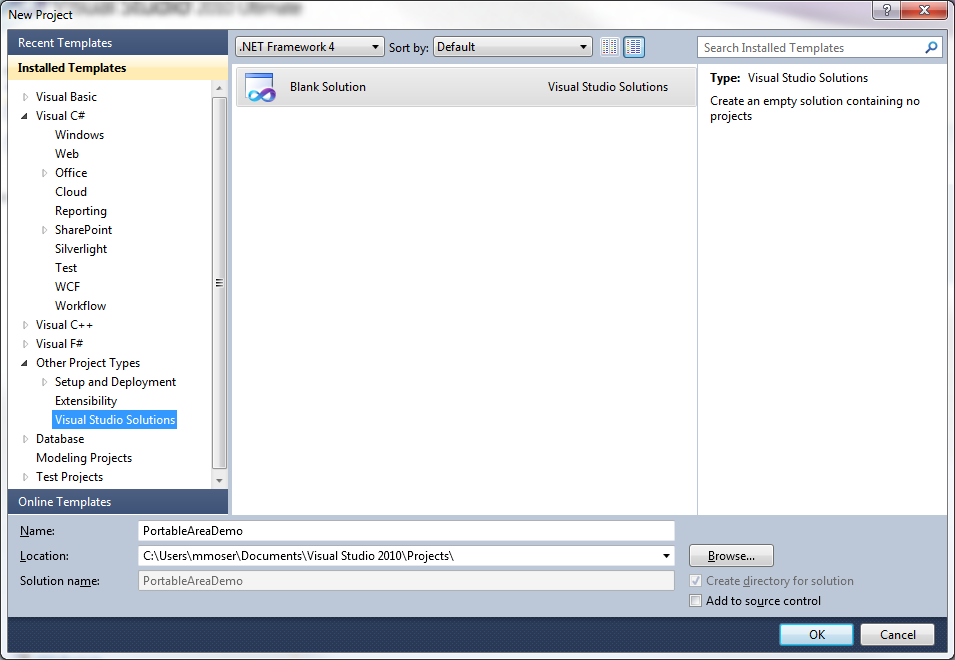
First, let?s create a blank solution. Click on New Project, then select Other Project Types ?> Visual Studio Solutions. Name it PortableAreaDemo
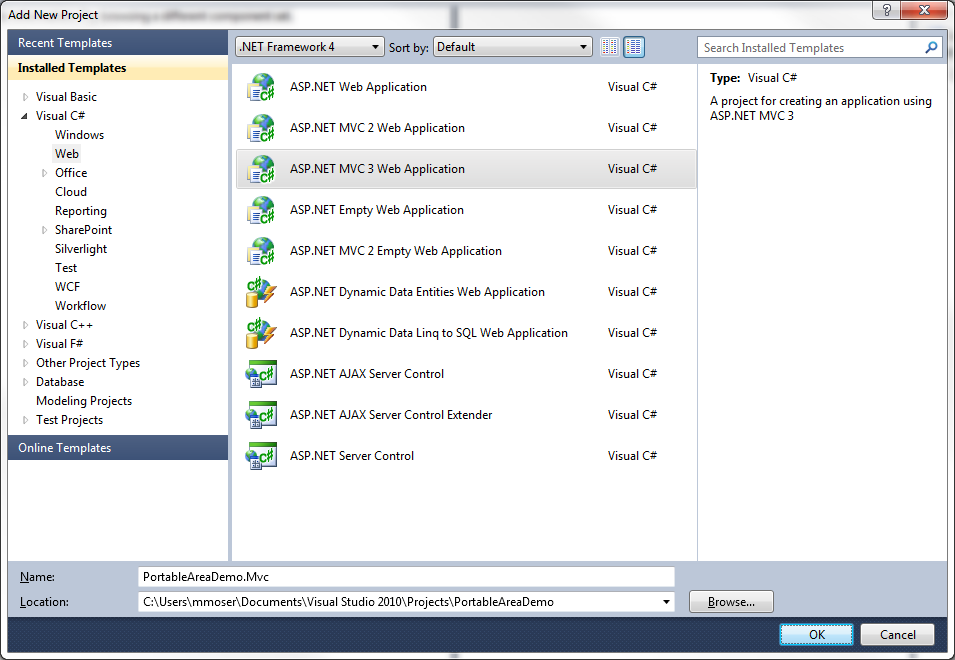
Next, right click on the solution in Solution Explorer and Add New Project. Choose Web and ASP.NET MVC 3 Application. I Named mine PortableAreaDemo.Mvc.
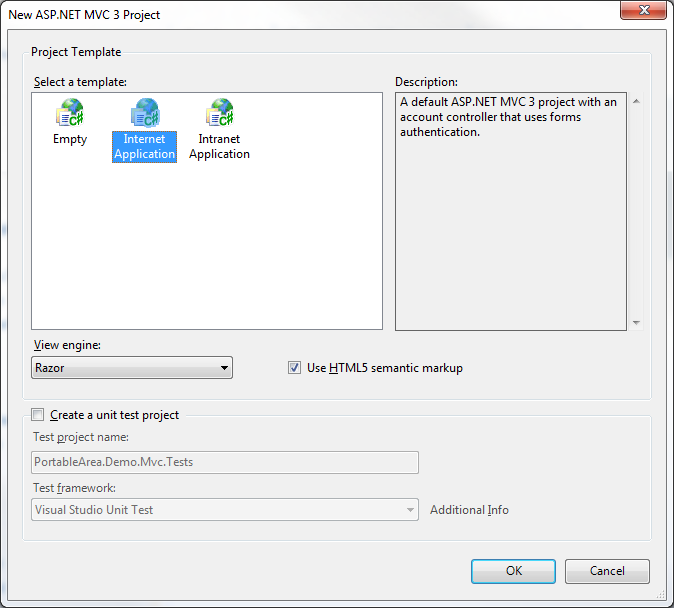
Choose Internet Application on the next screen:
Next, add another project. This is also going to be a ASP.NET MVC 3 Web Application. I called mine PortableAreaDemo.PortableAreas. Note, you might get an error here or might not see your solution node. If so, follow this link: http://stackoverflow.com/questions/7457935/solution-folder-not-showing-in-visual-studio-2010-how-can-i-make-it-visible
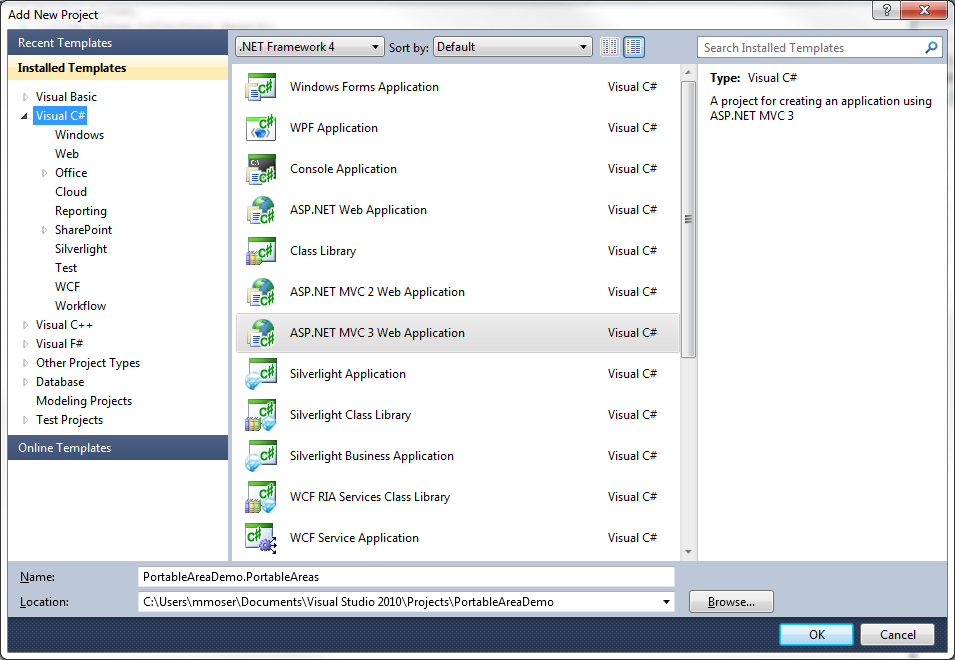
This time, just make it an empty application.
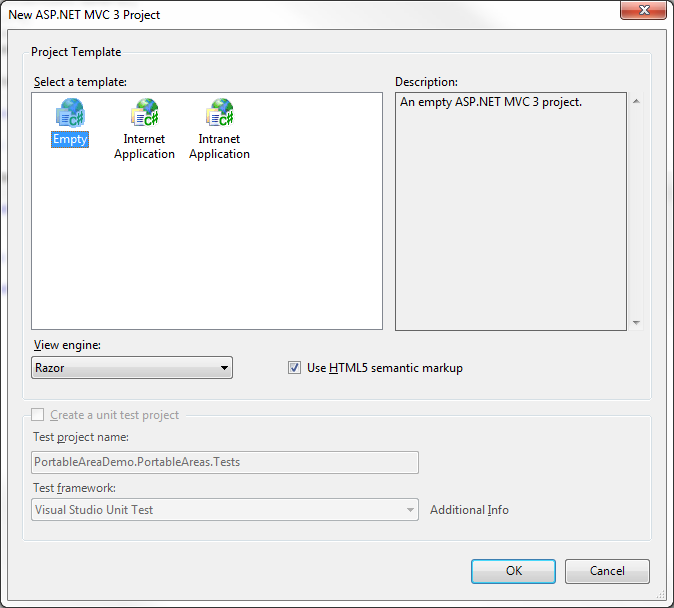
Hopefully you see something like this:
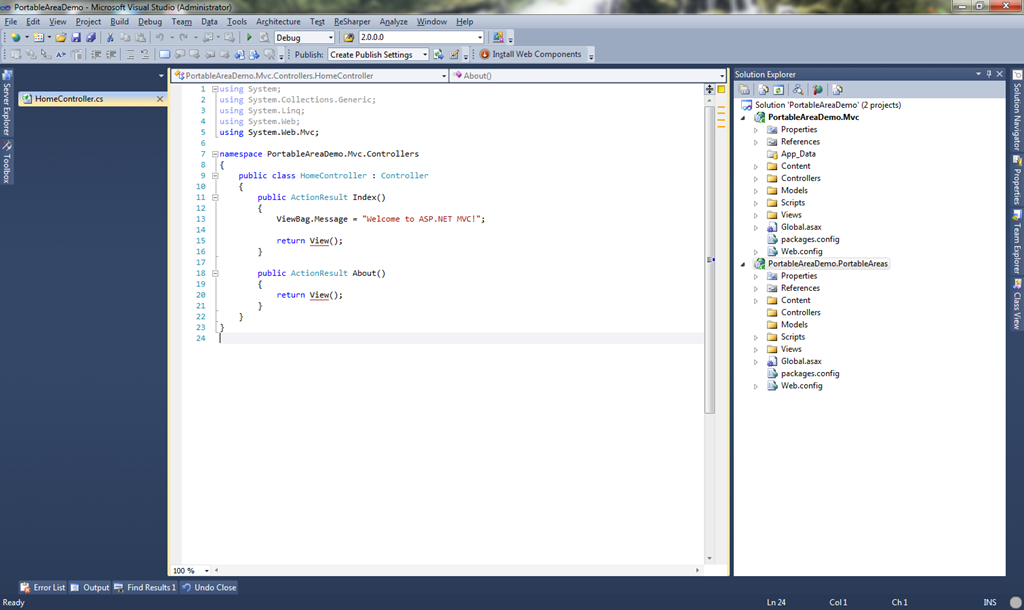
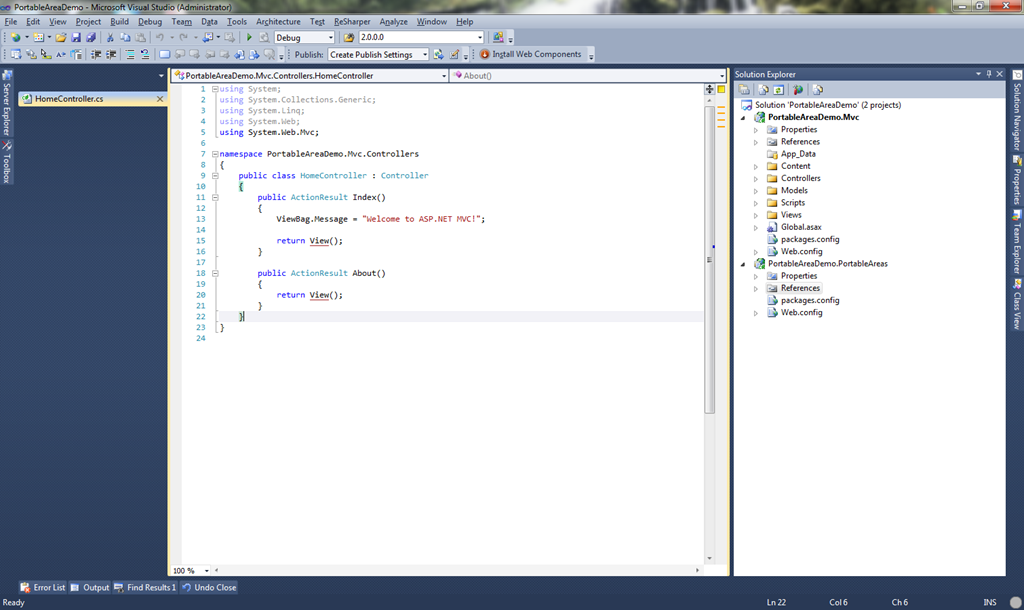
Next, go ahead and delete the Controllers, Views, Models, Scripts, and Content folders under the PortableAreas project. Also, remove the Global.asax inside that project as well.
Now, right click on the PortableAreas project and add an Area. Let?s call it Demo. This should produce something like this:
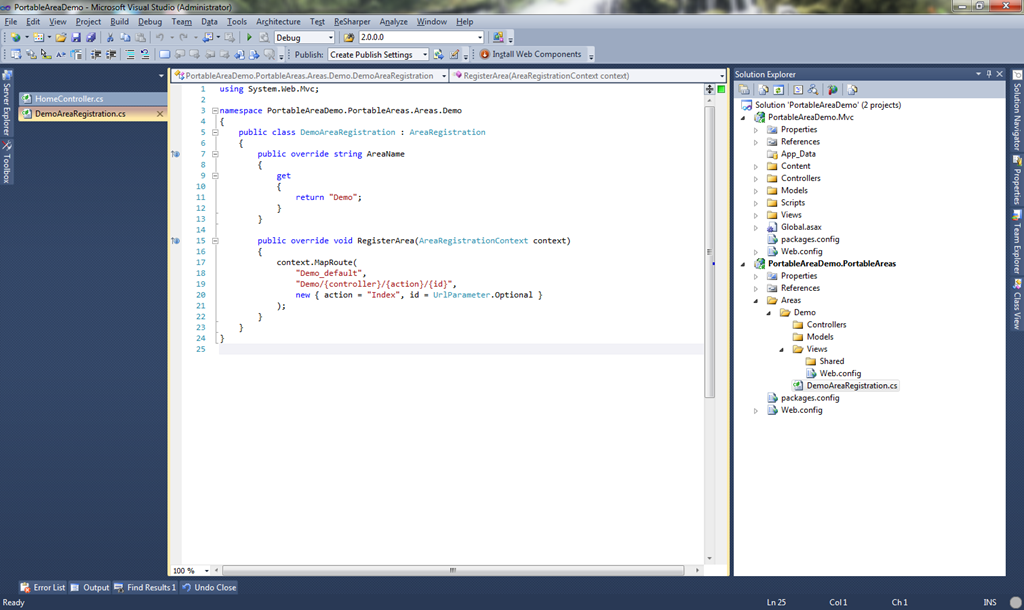
Notice now that it created an AreaRegistration child called DemoAreaRegistration. We will need to now go and add a Library Package Reference to this. Right click on References under the PortableAreas project ?> Add Library Package Reference. Then click on Online ?> All. Wait for it to load, then type MvcContrib in the search box. Install the package.

Now go back into DemoAreaRegistration.cs and change the parent name to PortableAreaRegistration.
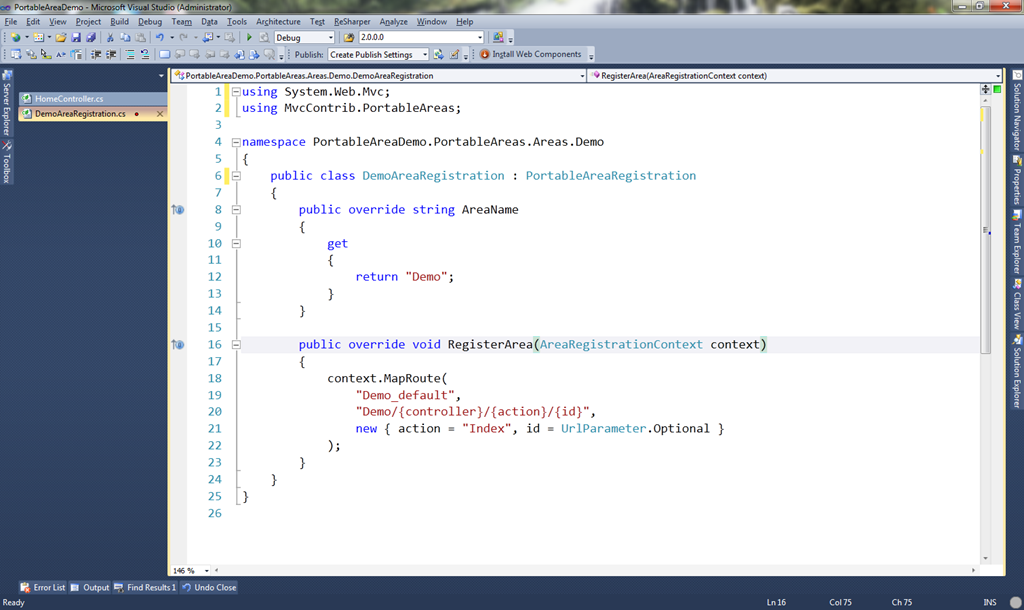
Move the routes out into a private method called RegisterRoutes. By default, if you were to call the base.RegisterAreas here, it would set up the EmbeddedResource. However, your routes get set up in the wrong order and you will lose control once your portable area gets more sophisticated. I would strongly suggest not using the built in ones here and registering them yourself. Override the RegisterArea that passes the IApplicationBus instead of the one that just has the context:
1: public override void RegisterArea(AreaRegistrationContext context, IApplicationBus bus)
2: {
3: RegisterRoutes(context);
4: RegisterAreaEmbeddedResources();
5: }
Then add a private method called RegisterRoutes and add the following routes into it:
1: private void RegisterRoutes(AreaRegistrationContext context)
2: {
3: context.MapRoute(
4: AreaName + "_scripts",
5: base.AreaRoutePrefix + "/Scripts/{resourceName}",
6: new { controller = "EmbeddedResource", action = "Index", resourcePath = "scripts" },
7: new[] { "MvcContrib.PortableAreas" }
8: );
9:
10: context.MapRoute(
11: AreaName + "_images",
12: base.AreaRoutePrefix + "/images/{resourceName}",
13: new { controller = "EmbeddedResource", action = "Index", resourcePath = "images" },
14: new[] { "MvcContrib.PortableAreas" }
15: );
16:
17: context.MapRoute(
18: AreaName + "_default",
19: base.AreaRoutePrefix + "/{controller}/{action}/{id}",
20: new { action = "Index", id = UrlParameter.Optional },
21: new[] { "PortableAreaDemo.PortableAreas.Areas.Demo.Controllers", "MvcContrib" }
22: );
23: }
When all is done, your registration class should look like this:
1: using System.Web.Mvc;
2: using MvcContrib.PortableAreas;
3:
4: namespace PortableAreaDemo.PortableAreas.Areas.Demo
5: {
6: public class DemoAreaRegistration : PortableAreaRegistration
7: {
8: public override string AreaName
9: {
10: get
11: {
12: return "Demo";
13: }
14: }
15:
16: public override void RegisterArea(AreaRegistrationContext context, IApplicationBus bus)
17: {
18: RegisterRoutes(context);
19: RegisterAreaEmbeddedResources();
20: }
21:
22: private void RegisterRoutes(AreaRegistrationContext context)
23: {
24: context.MapRoute(
25: AreaName + "_scripts",
26: base.AreaRoutePrefix + "/Scripts/{resourceName}",
27: new { controller = "EmbeddedResource", action = "Index", resourcePath = "scripts" },
28: new[] { "MvcContrib.PortableAreas" }
29: );
30:
31: context.MapRoute(
32: AreaName + "_images",
33: base.AreaRoutePrefix + "/images/{resourceName}",
34: new { controller = "EmbeddedResource", action = "Index", resourcePath = "images" },
35: new[] { "MvcContrib.PortableAreas" }
36: );
37:
38: context.MapRoute(
39: AreaName + "_default",
40: base.AreaRoutePrefix + "/{controller}/{action}/{id}",
41: new { action = "Index", id = UrlParameter.Optional },
42: new[] { "PortableAreaDemo.PortableAreas.Areas.Demo.Controllers", "MvcContrib" }
43: );
44: }
45:
46: }
47: }
So a little explanation of this. When your application first starts, there is a little piece of code in Application_Start that will end up calling this Portable Area Registration. Area routes should always be called before your normal routes to give it a chance to find the Area name. Otherwise, the default route would think the Area name was a controller name. Here is the piece of code that calls the portable area registration:
1: protected void Application_Start()
2: {
3: AreaRegistration.RegisterAllAreas();
4: ...
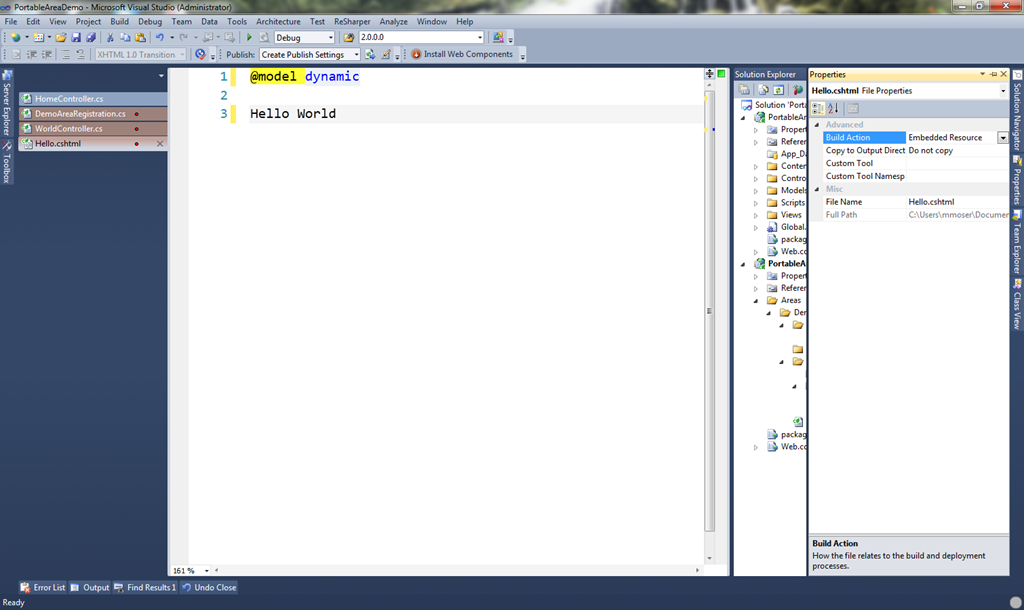
Ok, so now let?s create a controller in the Demo area. Let?s call it ?World?. Now let?s add an action to it. Can you guess the name? Yep, that?s right ?Hello?. Create a Razor partial View for it. Type ?Hello World? in the view. When all is said and done, you should look something like this:

Now, here is a very IMPORTANT step. Anything that is either a view, css, javascript, image, etc must be an embedded resource. What does this mean? It means it will be added to the dll instead of being found on the file system. This is important because a portable area travels with the dll and not with the project itself. Yes, it will cause you to have to build every time you want to see a change in the page or js. This is why you must decide up front if it is worth the development time that it will take. For me, the projects that I have used them for, it has been. We wanted something reusable that we could move from solution to solution without having to rewrite.
So in order to make it embedded, right click on the Hello.cshtml file and choose Properties. Change the Build Action to Embedded Resource.
Next, add the reference for the PortableAreas Project to the main Mvc project.
Now add a folder called Areas under the Mvc project. Open the folder Views under the Mvc project and copy the Web.config up to the Areas folder that you just created.
You should now look like this:
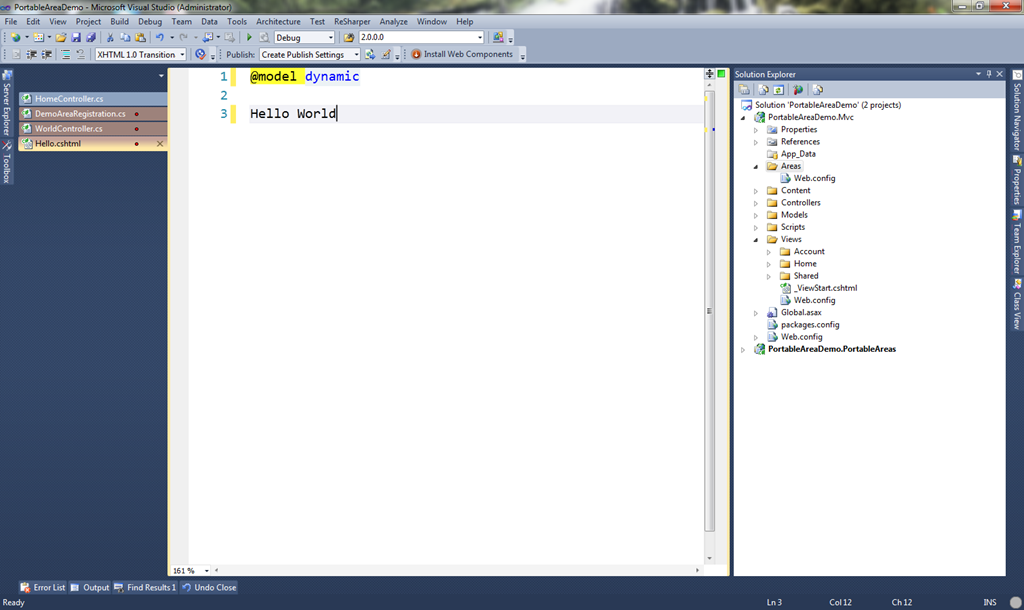
So, why are we adding the folder called Areas and a web.config into it? It is because when the dll gets put into the project, it will put your portable area into this folder underneath the covers. This is where it pretends it is and will look for the views and such inside of this folder.
Now, in the Index.cshtml view under Home, add the line at the bottom:
1: @Html.Action("Hello", "World", new { area = "Demo"})
Set the PortableAreaDemo.Mvc as the Startup Project and Press ?Start Debugging?, you should now see:
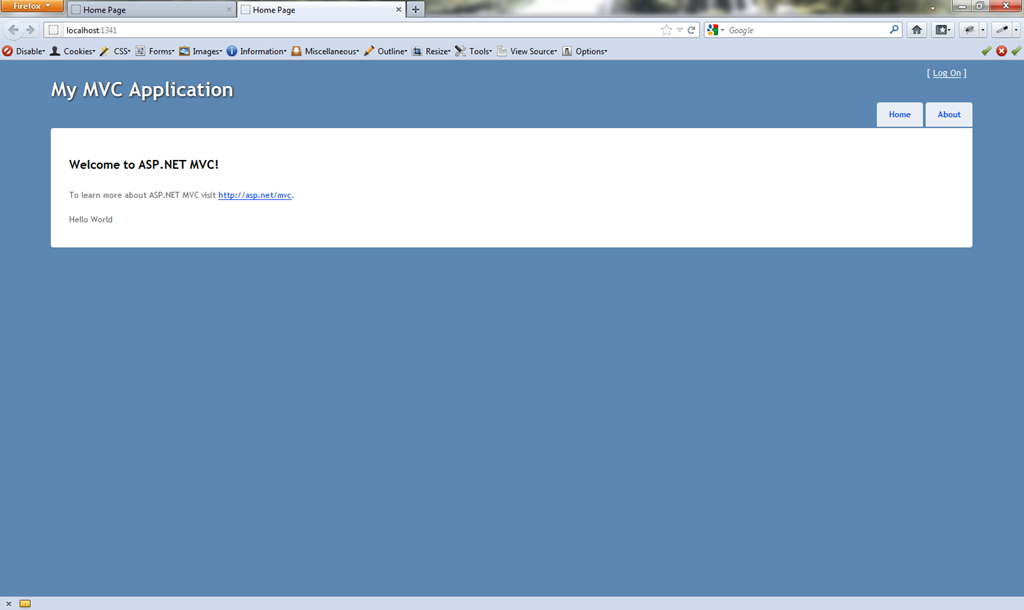
Hopefully you got it working. If not, go back through and check the steps, otherwise, you can comment here or catch me on twitter at @mike_d_moser and I can try and help you out. Thanks and happy coding.
Mike,
This seems very, very brittle – and not particularly easy to put together. Do you see any practical applications for this? Or, is this just a case where this is available “just because… why not”? Thanks
-Rob
Hi Rob, thanks for commenting. I have used portable areas in quite a few
practical situations. It is something that you really have to decide
for yourself whether it is worth the development time to use.
I actually use portable areas in two of my products. I chose to use them
because I have built engines for these products. Now I can take those
engines and drop them anywhere, including into each other (yes, I
actually drop one into another one). I also used portable areas for
widgets. These are the more frequent seen reasons to use portable
areas.
The downside to developing them this way is that you cannot use the
traditional post backs. Pretty much any call you make needs to be using
AJAX, because you have usually put this in some page. It isn’t hard
really to develop this way, it is just a bit different thought process.
The other downside is that you have to compile each time you make a
small change to see it. Now, there are work-arounds to that. One fellow
developer and I had a separate project where the portable area was the
site. That said, it took quite a bit to get it to a good level where we
could develop it in a place without it needing to compile and then still
use that in the other sites where we were dropping it in.
can you expand further on why you can’t use postbacks?
Thanks Mike,
@Html.Action(“Hello”, “World”, new { area = “Demo”})
if I leave this code you will encounter the following error
The controller for path ‘/’ was not found or does not implement
IController. Description:
An unhandled exception occurred during the execution of the current web
request. Please review the stack trace for more information about the error and
where it originated in the code.
Exception Details:
System.Web.HttpException: The controller for path ‘/’ was not found or does
not implement IController
And,
Edit: > @Html.Action(“Hello”, “World”, new { area = “”}) (remove Demo)
run successfully!
So I made a mistake at any stage?
Thanks so much!
If use “AreaRegistration.RegisterAllAreas();”
@Html.EditorFor(model => model.Id) > Error
NullReferenceException
Hi Binhnd. Can you please post your code for your registration on the Portable Areas. Especially the constructor and the routes. I think the problem might be there. Thanks.
Hey Betty. Sorry for the long delay. So here is a scenario where traditional Form Posts won’t work. Let’s say you have an Album Engine which might have a place to create an album, upload photos, etc… Let’s say you want to take that Album Engine and drop it into your site and make it look like part of your site. So, I would create a page in my main site and then just call Html.Action(“Create”, “Album”, …) in the page. This would then just be the Create album control that now looks like a page in the main site (Layout, style, etc…). Now let’s say you want to validate the album name and then when getting to the server, you also want to ensure the album name is unique.
What would we do normally? We would probably do some client validation, then Model.IsValid when it gets to the server, then validate it against the database. If any of these don’t work from the server, we would probably return the Model back to the View with the errors on it, right? Well, with a portable area, when we return the view (the Create Album view), it is just a control without any styling, layout, etc… Therefore we would actually have to handle our post like this
form.submit(function() {
$.post(…, form.serialize(), function(response) { … })
});
and then handle the errors ourselves. If the page was good, then we would either need some return url plugged in or to now send it to some convention or function pointer.
Right, so you’re referring to the limitations of HTML.Action rather than portable areas themselves. As you can see in the following tutorials postbacks are actually possible
http://lostechies.com/erichexter/2009/11/01/asp-net-mvc-portable-areas-via-mvccontrib/
Hi Mike,
thank your for this article. This is exactly what I was searching for.
I’ve got a simple question. How cann I use CSS class in that PortableArea project ? Let’s say…I will add a simple style /for instance font-bold/ to DIV with text HELLO WORLD und wannt to use it in PortableAreaDemo.Mvc project.
Is there any chance to define also CSS styles in that PortableArea project und use it ?
Please advice.
Thx
Michal
Hi Sody,
So the simplest thing you could do is do this:
1. Add this to your registration right below the scripts registration:
context.MapRoute(
AreaName + “_content”,
base.AreaRoutePrefix + “/Content/{resourceName}”,
new { controller = “EmbeddedResource”, action = “Index”, resourcePath = “content” },
new[] { “MvcContrib.PortableAreas” }
);
2. Add a style sheet, I called mine demo.css with this in it:
div.helloworld {
font-weight: bold;
}3. Mark that style sheet embedded resource, by going right clicking on the file and going to properties.4. Change the html to look like this in the view Hello.cshtml:
@model dynamic
Hello World
5. Build and run it. – Should see Hello World in bold
Notice the link that references the stylesheet. This now has Demo in it. What we did was tell the portable area that whenever it sees the route with Content in it, use the embedded resource controller. The thing is, you might have image urls in the stylesheet. Make sure those images are embedded and the either exist in the images folder that already has a route set up for it or you set up another route for those images. Not bad, just always remember that whatever files like css, images, or javascript all have to be embedded. Then the EmbeddedResourceController (built into the MvcContrib) will take care of it from there.
Many, many thanks !