
Recently you may have noticed that the Bing Maps team released a WPF Map control which is currently in Beta. In light of the recent earth quake on the east coast of the United States, I thought an earthquake application would be a great way to become familiar with the Map control. There are a few things you must do before we can get started.
- Get the Bing Maps WPF control.
- Get a Bing Maps API key. (not needed for development)
Now that you have that out of the way let?s write an application. Create a new WPF application targeting the .NET 4.0 framework. Add a reference to the Microsoft.Maps.MapControl.WPF.dll. This will most likely be located in Program Files or Program Files (x86) ?> Bing Maps WPF Control ?> Beta ?> Libraries. Next you need to declare a namespace in XAML:
<map:Map />
</Grid>
And this is the control at run time:
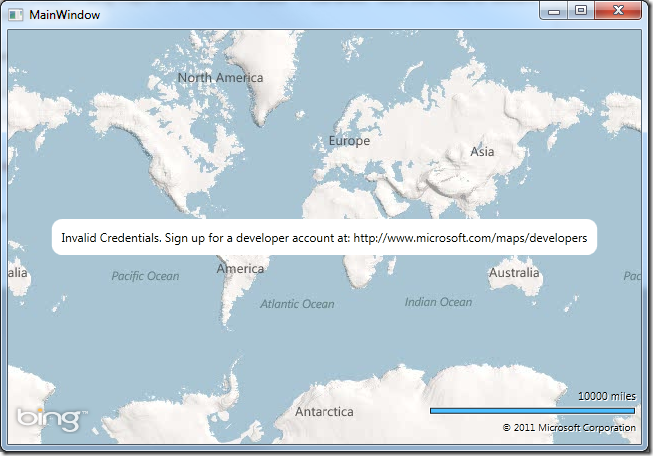
Not much to look at, but it?s definitely a map. Notice that because we are not using an API key we get a nice little message that tells us where to get one. Well this is great and all, but we want to see earth quakes! So let?s start doing the real coding now. We know we will need an object to hold information about the earthquakes.
{
public string Title { get; set; }
public string Description { get; set; }
public Location Location { get; set; }
}
That should take care of that. Next we need data about earthquakes and their locations. Luckily for us there is a free resource available to grab this information from USGS. So let?s write a simple service to get this information:
{
public static void GetRecentEarthquakes(EventHandler<EarthquakeEventArgs> callback)
{
WebClient client = new WebClient();
client.OpenReadCompleted += (o, e) =>
{
XDocument doc = XDocument.Load(e.Result);
var data = (from eq in doc.Element("rss").Element("channel").Elements("item")
select new Earthquake()
{
Title = eq.Element("title").Value,
Description = eq.Element("description").Value,
Location = new Location(Convert.ToDouble(eq.Element(XName.Get("lat", "http://www.w3.org/2003/01/geo/wgs84_pos#")).Value), Convert.ToDouble(eq.Element(XName.Get("long", "http://www.w3.org/2003/01/geo/wgs84_pos#")).Value))
}).ToList();
callback(null, new EarthquakeEventArgs(data));
};
client.OpenReadAsync(new Uri("http://earthquake.usgs.gov/eqcenter/recenteqsww/catalogs/eqs7day-M2.5.xml"));
}
}
public class EarthquakeEventArgs : EventArgs
{
public List<Earthquake> Locations { get; set; }
public EarthquakeEventArgs(List<Earthquake> locations)
{
Locations = locations;
}
}
The last thing we need is a ViewModel that will expose our earthquakes from consumption by our view:
{
private ObservableCollection<Earthquake> _earthquakes;
public ObservableCollection<Earthquake> Earthquakes
{
get { return _earthquakes; }
set
{
_earthquakes = value;
OnPropertyChanged("Earthquakes");
}
}
public EarthquakeViewModel()
{
EarthquakeService.GetRecentEarthquakes((o, ea) =>
{
Earthquakes = new ObservableCollection<Earthquake>(ea.Locations);
});
}
public event PropertyChangedEventHandler PropertyChanged;
protected virtual void OnPropertyChanged(string propertyName)
{
if (PropertyChanged != null)
PropertyChanged(this, new PropertyChangedEventArgs(propertyName));
}
}
Don?t forget to set the DataContext of the view to our ViewModel:
{
InitializeComponent();
DataContext = new EarthquakeViewModel();
}
<map:MapItemsControl ItemsSource="{Binding Earthquakes}" />
</map:Map>
Here is what you will see when you run the application:
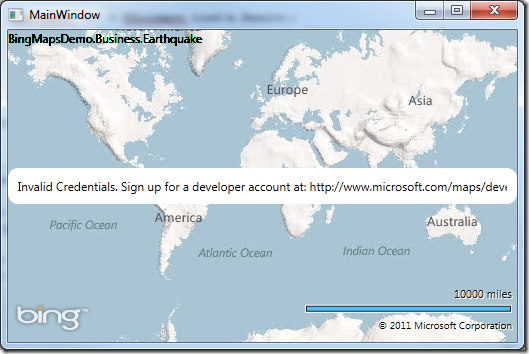
HEY! Where the hell are my earthquakes? This thing sucks! Piece of sh?.. Oh wait, I need to tell the map how to render the earthquakes. So we need to create a DataTemplate:
<DataTemplate x:Key="EarthquakeTemplate">
<map:Pushpin map:MapLayer.Position="{Binding Location}" />
</DataTemplate>
</Window.Resources>
And don?t forget to specify the ItemTemplate:
<map:MapItemsControl ItemsSource="{Binding Earthquakes}"
ItemTemplate="{StaticResource EarthquakeTemplate}"/>
</map:Map>
Now let?s see what we get when we run the application:
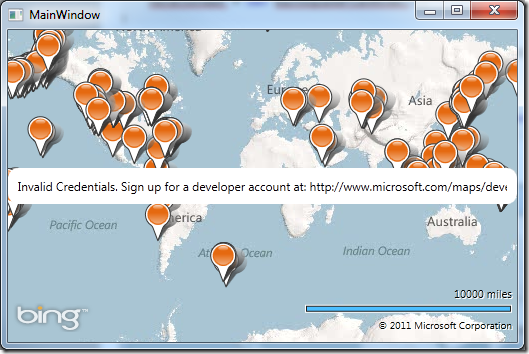

Hey look! Earthquakes. That is so cool. But wait, I want to see information about the earth quake. Preferably in a popup when I hover over a Pushpin. Well Lets wire that up real quick. First we need to add a MapLayer to the map that will act as our popup:
<map:MapItemsControl ItemsSource="{Binding Earthquakes}"
ItemTemplate="{StaticResource EarthquakeTemplate}"/>
<map:MapLayer x:Name="ContentPopupLayer">
<Grid x:Name="ContentPopup" Visibility="Collapsed" Background="White" Opacity="0.85">
<StackPanel Margin="15">
<TextBlock x:Name="ContentPopupText" FontSize="12" FontWeight="Bold" ></TextBlock>
<TextBlock x:Name="ContentPopupDescription" FontSize="12"></TextBlock>
</StackPanel>
</Grid>
</map:MapLayer>
</map:Map>
Now we need to add some event handler to the ItemTemplate.
<map:Pushpin map:MapLayer.Position="{Binding Location}" Tag="{Binding}" MouseEnter="Pushpin_MouseEnter" MouseLeave="Pushpin_MouseLeave" />
</DataTemplate>
We have added two event handlers; one for when we mouse over and the other for when the mouse is no longer over the pushpin. Notice that I am storing the bound item in the Tag of the Pushpin object. We will need that to change the location of popup.
{
FrameworkElement pin = sender as FrameworkElement;
MapLayer.SetPosition(ContentPopup, MapLayer.GetPosition(pin));
MapLayer.SetPositionOffset(ContentPopup, new Point(20, -15));
var location = (Earthquake)pin.Tag;
ContentPopupText.Text = location.Title;
ContentPopupDescription.Text = location.Description;
ContentPopup.Visibility = Visibility.Visible;
}
private void Pushpin_MouseLeave(object sender, MouseEventArgs e)
{
ContentPopup.Visibility = Visibility.Collapsed;
}
Now when we hover over the Pushpin we get some useful information about the earthquake:

That?s it for this application. The Bing Maps WPF Control has been a long awaited control and I am glad it finally made it to WPF. As you can see it is pretty easy to use as well. Now you can Download the source and start playing.
Nice! This was fun and it was easy to follow and worked! Now onto porting this to the WindowsPhone.
I’m getting “Unable to contact Server. Please try again later.” in design mode. (then a null reference error during the main window’s initialization, with no available code or disassembly to view) I’m guessing this means the problem is something to do with the network I’m no, any ideas on how I could go about troubleshooting this to get to some more granular/useful info on how to resolve?
I’m getting “Unable to contact Server. Please try again later.” in
design mode. (then a null reference error during the main window’s
initialization, with no available code or disassembly to view) I’m
guessing this means the problem is something to do with the network I’m
no, any ideas on how I could go about troubleshooting this to get to
some more granular/useful info on how to resolve?
That is expected during design time. Although I am not sure about the null reference error. try reloading your designer and see if it goes away. I have no experienced that yet. Keep in mind that ths control is in Beta so there are probably a few bugs in it.
Yeah, I don’t care about the design time bug, I just thought it might be pertinent to what was happening at runtime, which is the showstopper.
Unfortunately it crashed blend 4 and VS 2010 when the “unable to contact server” message is in effect and I touches the map with the mouse.
However it went away when I added the MapItemControl… some sort of beta magic there… Nice toutorial, should be included in the distributed documentation…